Turn on the after-call popup
After every call PakkaLead offers to save the number as a lead, or to add a note to an existing lead.
1Allow PakkaLead to appear after calls
On Enable Call Popup, tap Open Settings 1. Android opens Display over other apps - find PakkaLead and switch it on, then come back.
Recommended: Set PakkaLead as your Caller ID app 2 keeps the popup working on phones that close background apps (Redmi, Vivo and others).
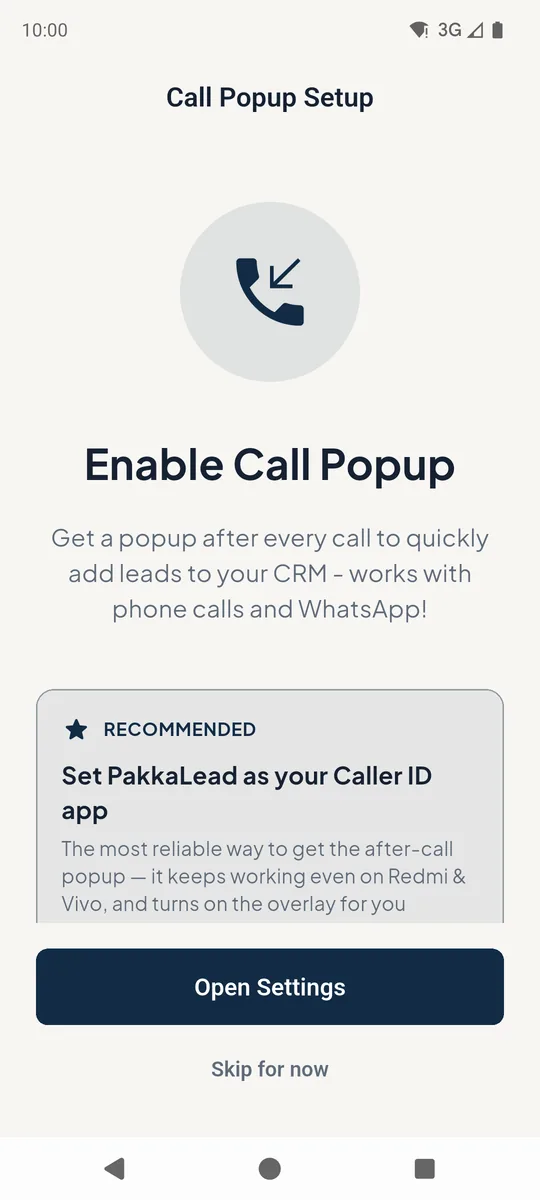 12
12Call popup setup screen 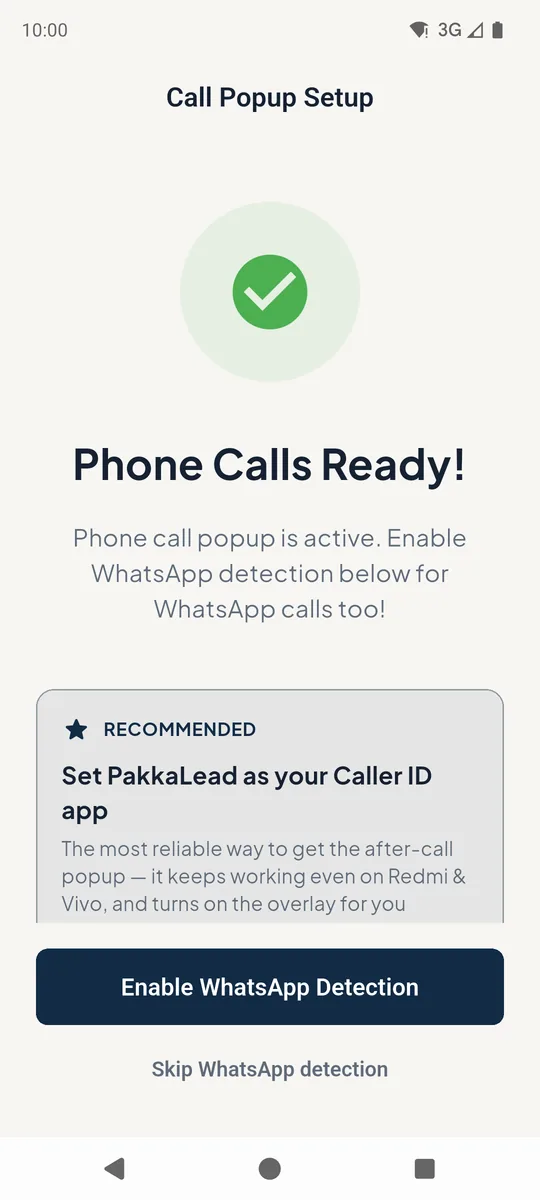
Phone calls ready confirmation 2Allow the call log
When you reach the home screen, PakkaLead explains how it uses your call log before Android asks. Read it, then tap Allow 1.
Calls with numbers that are already your leads are logged in that lead's history. Calls with any other number stay on your phone. Call audio is never recorded.
You can tap No thanks and keep using PakkaLead - you just won't get the popup.
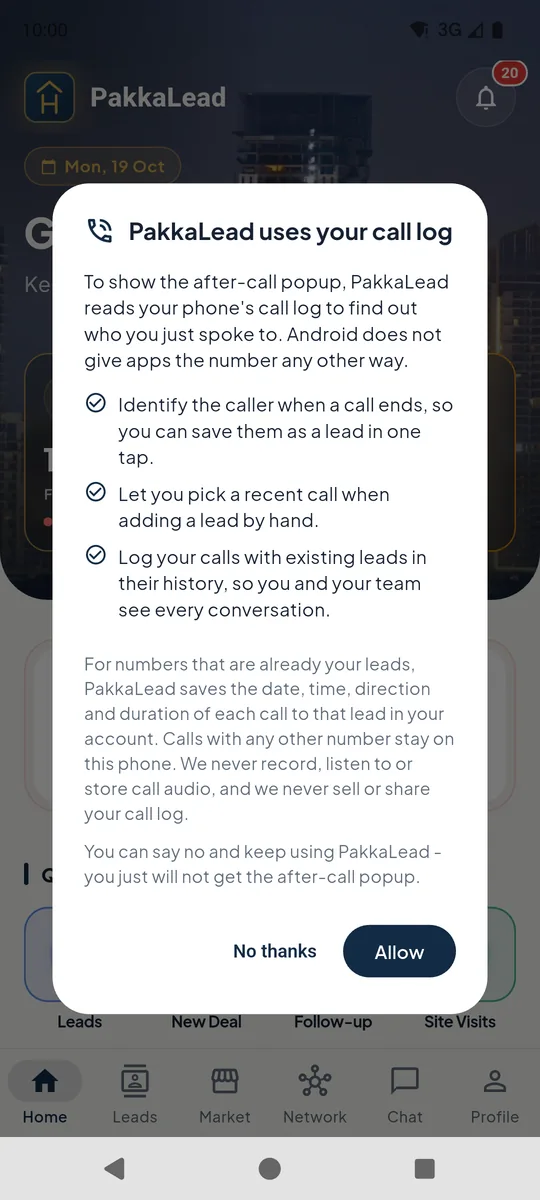 1
1Call log explanation dialog
Good to know
- WhatsApp calls can show the popup too: tap Enable WhatsApp Detection on the same screen and allow notification access.
Still stuck? Email supportNext: The home screen →